Digitization
Content Transformation
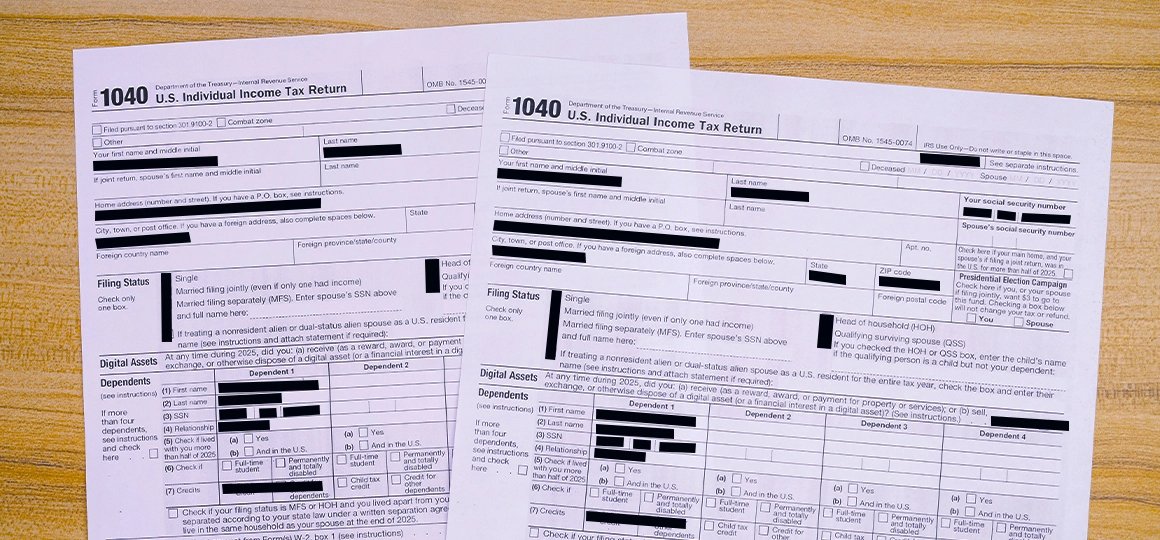
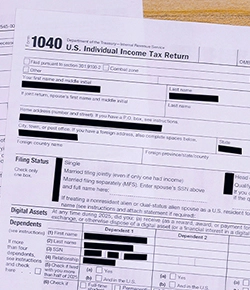
Before a PDF leaves your organization, anything confidential inside it has to go. Not be covered, but go entirely. Personal details, financial records, and internal business information all need permanent removal, because redaction is removal, not concealment. A black box drawn over a name hides nothing. This guide covers how to redact sensitive information from PDF documents, clear the hidden data most people forget, and check the file before sharing.
Three things, plus the habit of checking your own work afterward.
Keep this in mind throughout: covered text is still text. If a document is not securely redacted, anyone can select a black box, paste it into a blank document, and read what sits underneath.
Identify the confidential content, permanently remove it from the document, clear any hidden information, and verify that the data cannot be accessed before sharing the file. Six steps, in order. Skipping the last one is how most redaction failures reach the public.
Work on a duplicate, never the source file. Store the original somewhere with restricted access, name the working copy so its status is obvious, and limit who can open either.
Read every page. Look for confidential text, images, tables, headers, and footers, then search for each name, account number, and identifier on your list. The first mention is easy to spot, but the fourth one is easy to miss when buried in a footnote on page 40.
Mark everything that has to go, review the full set of marks, then apply them. Marking and applying are two separate actions. Once applied, the content should no longer be selectable, searchable, or extractable.
Visible content is half the job. Check metadata, comments, attachments, hidden layers, stored form data, embedded search indexes, and data left by earlier saves. Run your tool’s PDF sanitization step and clear whatever is confidential.
Save as a new file with a name that states what it is, such as filename-REDACTED. Do not overwrite the original. In most tools the removal becomes final only when the save completes, so closing without saving leaves everything in place.
Open the saved file fresh and check every page. Search for each redacted term. Try to select, copy, and extract the blacked-out areas. Check the document properties for anything left in metadata or attachments. Then ask: does what remains still point to the person you just removed?
That last step is not extra diligence. It is part of the standard. ISO/IEC 27038, the international specification for digital redaction, sets requirements for redaction software and methods for testing that a redaction was securely completed. A redaction nobody tested is a redaction nobody can vouch for.
Scanned PDFs hold page images rather than text, so there is often nothing to select. Run OCR to locate the text, then redact the page image together with the OCR text layer it created, and read the output before sharing.
OCR places an invisible text layer over the page image. That layer is what makes a scan searchable and also what makes it tricky to redact. Clear the words from the image and leave the layer, and the text can still be copied out. Clear the layer and leave the image, and the information is still on screen. Both have to go.
Check every page, not just the first. A typed cover sheet followed by forty scanned pages is common. Watch for what recognition will never flag: handwritten notes, stamps, signatures, and details inside photographs. And because recognition is imperfect, a search can come back clean while a misread version sits in plain view.
These are not rare failures. A Princeton study of 1.8 million US federal court filings found around 2,000 documents with redaction boxes drawn on them, and 194 where the redaction had failed, exposing trade secrets and witness names.
Manual redaction suits a small number of files when someone in-house knows how to redact a PDF properly and has time to check the output. Recurring work, large volumes, and documents that resist easy handling benefit more from professional support. Automated detection sits inside both approaches.
The split is less about capability than what the work demands. Automated detection suits structured identifiers that repeat in a known shape, which is how it clears volume. Deciding whether a job title, a date, and a location together still identify someone is a reading task, and that is a reviewer’s job.
Ask how a provider handles confidential files, not just how quickly they work. Scope, security, and verification separate a usable service from a risky one. Eight things to confirm:
Apex CoVantage provides PII redaction services for organizations processing sensitive documents at volume, covering personal, health, financial, and legal data across PDFs, Office files, images, and digitized microfilm. The approach pairs automated detection with human review, and because Apex CoVantage also handles document accessibility, redacted files can come back tagged and structured rather than needing a second pass.
Redaction comes down to five decisions, in order. Identify what has to come out. Remove it permanently with a tool built for the job. Sanitize the hidden information. Save a separate redacted copy. Verify the file before it goes anywhere.
Do that once and you have a clean document. Do it the same way every time, with the checks written down and someone other than the redactor signing off, and you have a process. Organizations handling sensitive documents at volume need the second one, and that is where PDF redaction services pay for themselves.
Use a tool that removes the selected content rather than drawing over it. Mark what has to go, review the marks, apply them, run the sanitization step to clear hidden data, then save as a new file with a distinct name. The removal is final once the save completes.
Yes, if the redaction was never truly applied. A black rectangle or a highlight is a graphic sitting on top of live text, so the text can still be selected and copied out. A properly applied redaction securely deletes the content.
Scanned pages are images, so run OCR to locate the text, then redact the page image together with the OCR text layer. Removing only one of the two leaves the information readable: the picture stays on the page, or the text stays selectable. Handwriting and signatures need checking by eye.
They are strong on patterned data such as Social Security numbers, card numbers, phone numbers, email addresses, and dates. Pattern libraries are usually built around one country’s formats, so names and indirectly identifying details call for human judgment.
When volume outgrows the people available, when files arrive as scans or complex layouts, when the same work repeats every month, or when someone has to sign off that the output was verified. Each is a process requirement rather than a tool problem.